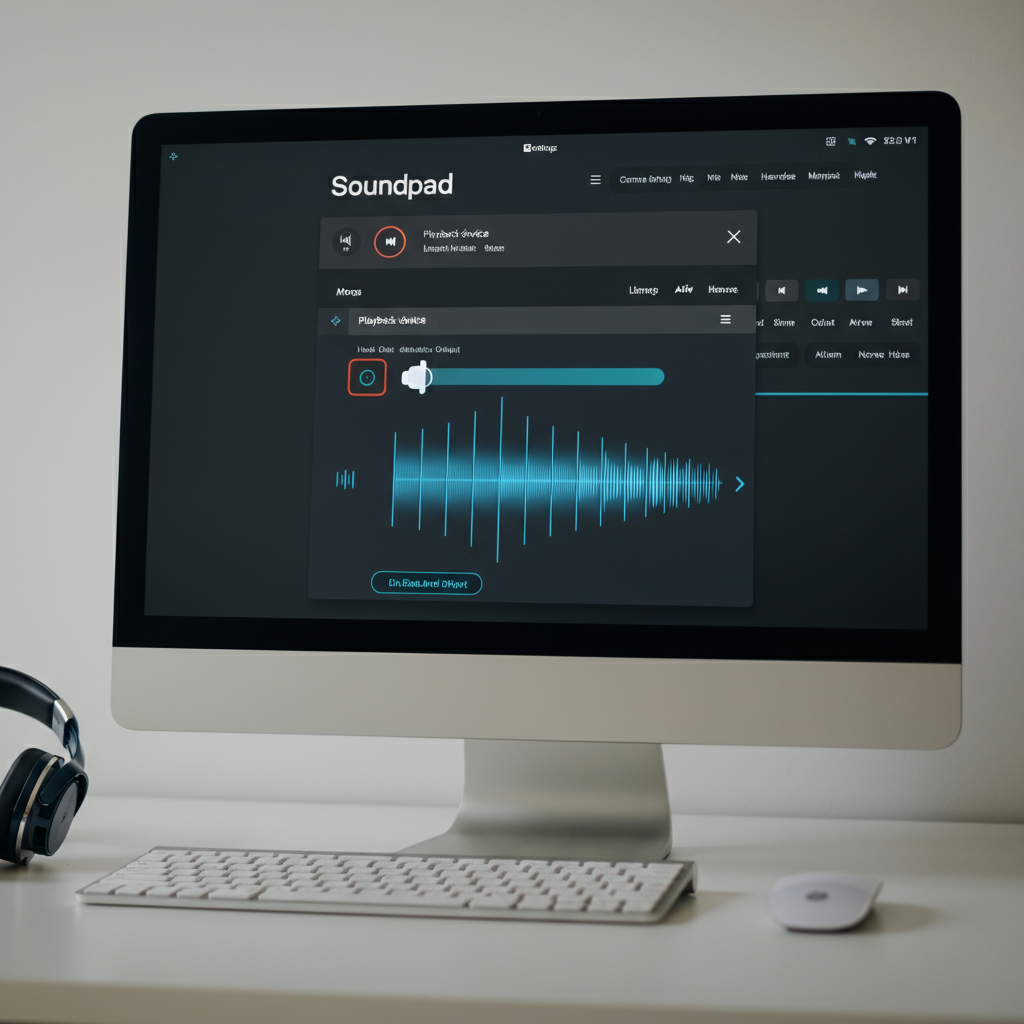
Troubleshooting audio issues Soundpad not working through headphones
You’re trying to make use of Soundpad for playing sounds, memes or other effects through headphones, but you’re unable to play them through headset but there’s no sound You’re not alone.
Many users complain that Soundpad cannot sound through the headphones even though everything appears to be set correctly.
Let’s examine the most important causes and possible solutions.
Why Won’t Soundpad Play Through Headphones?
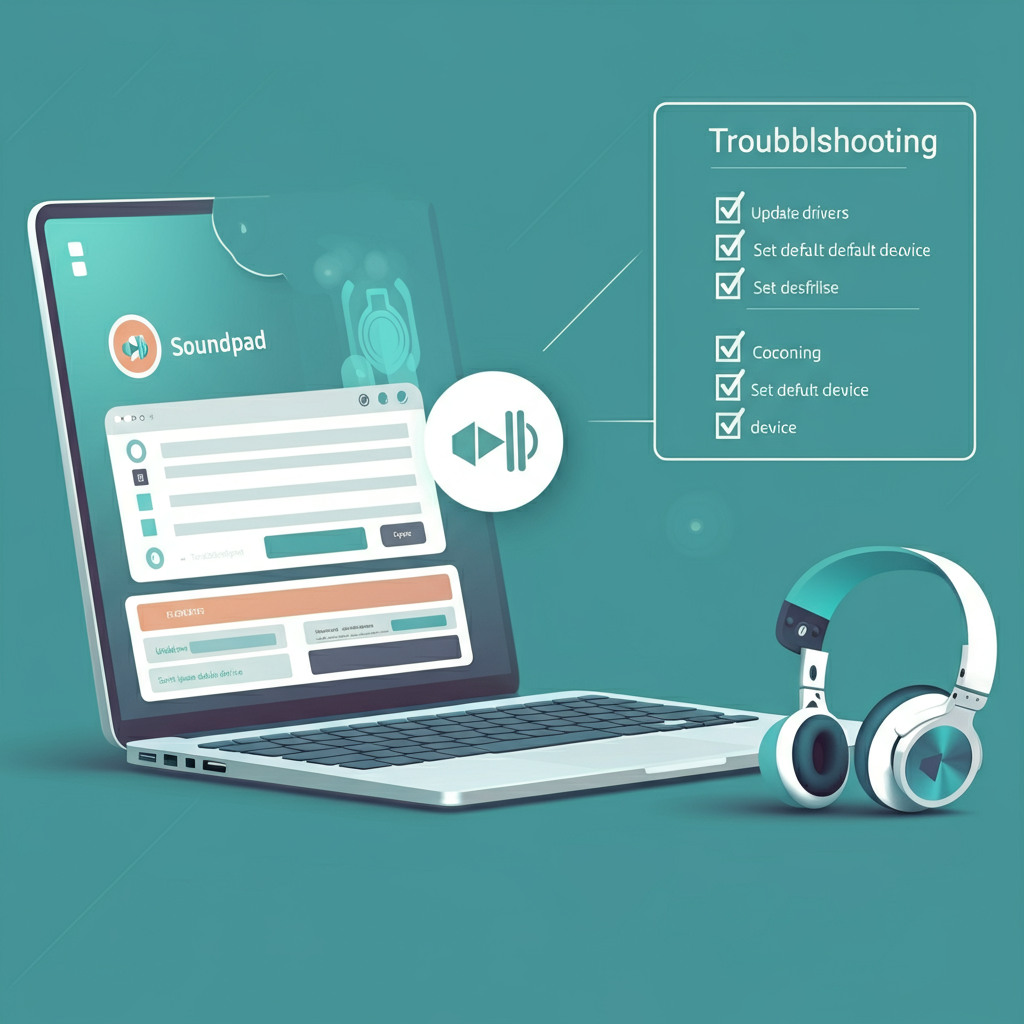
These are some of the most frequently cited motives:
1. Wrong Playback Device Selected
Soundpad could be configured to stream via the speakers or other audio output.
Fix:
-
Open Soundpad
-
Go to:
File - Preferences - Audio - Playback Device -
Select your headphones (e.g., Realtek, USB, Bluetooth headset)
2. Exclusive Mode Enabled
Windows could disable Soundpad in the event that the Exclusive Mode is enabled.
Fix:
-
Right-click the sound icon and open the Sound Settings
-
Select your headphones. Click the Device Properties
-
Go to Advanced tab
-
Uncheck both boxes under Exclusive Mode
3. Virtual Audio Driver Not Set Up
Soundpad is based on it’s Virtual Audio Driver to direct audio.
Fix:
-
In Soundpad you must ensure that its driver has been installed.
-
Visit
"File -> Preferences – Devicesand confirm that both the Playback and recording devices are selected correctly. -
If the driver is not present, reinstall Soundpad’s driver using the official settings
4. Voice Chat Software Interference
Applications such as Discord, Zoom, or Teams could be able to override output devices.
Fix:
-
Stop all chat/voice applications.
-
Reopen Soundpad
-
Playback of the test again
-
Relaunch your software for voice chat using the appropriate device.
5. Soundpad Volume or Hotkey Errors
Sometimes, users muffle sounds or assign keys to the wrong key unintentionally.
Fix:
-
Make sure that your volume sliders are in place inside Soundpad
-
Verify that no mute or delay hotkey is activated
Pro Tip: Test Playback Outside Games
To determine the root of the issue:
-
Open Soundpad
-
You can load any sound
-
Hit “Play”
If you hear this outside of games it is possible that the problem could be related to in-game audio routing or the permissions.
Final Steps: Reinstall Soundpad or Drivers
If nothing else works:
-
Reinstall Soundpad
-
Restart your computer
-
Connect your headphones
-
Try again, but with just Soundpad running
Most of the time an clear setup eliminates all routing conflicts.
Final Verdict
If Soundpad doesn’t play on audio headphones, the issue is typically caused by audio output configuration issues or driver issues, or apps conflicting.
Following the steps listed above will resolve the issue in a majority of cases.
More Soundpad information and tips can be found at ArtKerala.com External Source: Soundpad Official Support